How to turn an end-of-life Chromebook into a lightweight computer for school, home, programming, and everyday use.
Have an old Chromebook collecting dust? Maybe it still powers on, but ChromeOS updates have ended. Before recycling it, consider giving the hardware another purpose with a lightweight Linux distribution such as Lubuntu, Xubuntu, or Linux Mint XFCE.
A Chromebook reaching its software end of life does not necessarily mean the screen, keyboard, and processor have stopped being useful. For compatible models, Linux can transform it into a simple computer for homework, documents, web browsing, and learning to code.
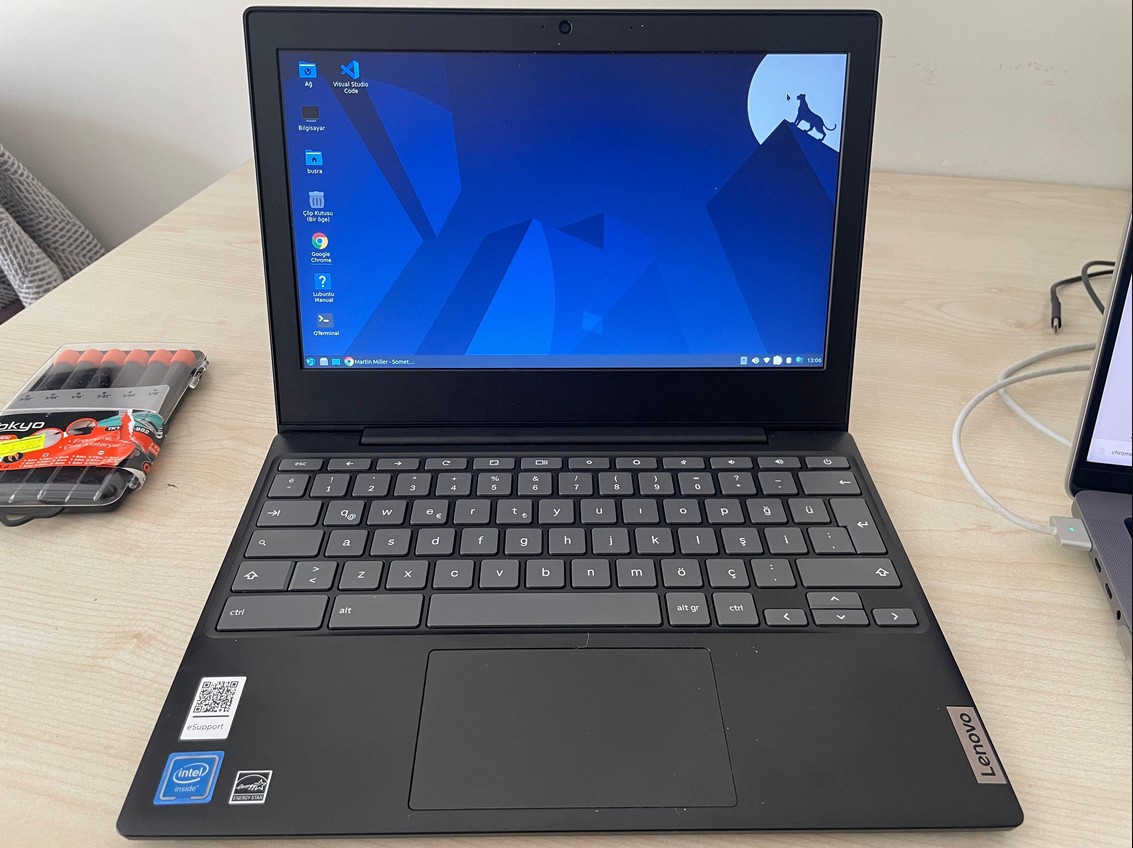
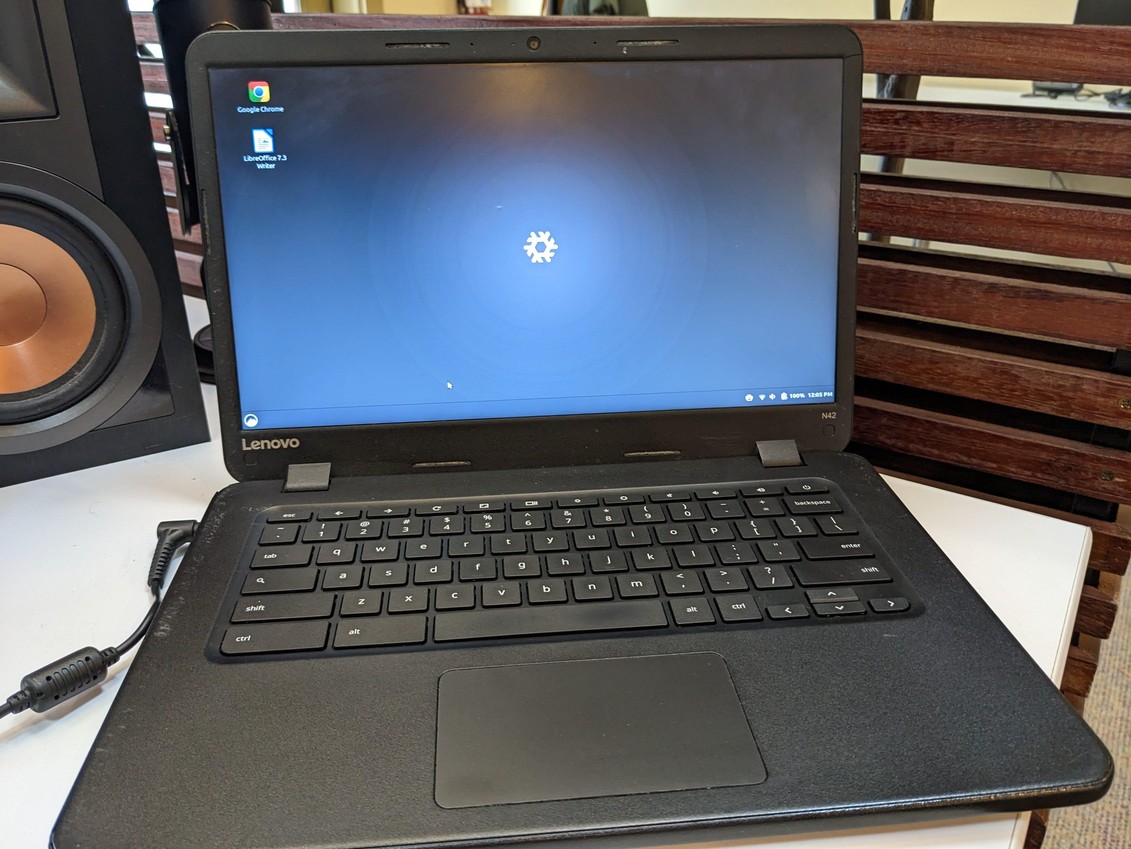
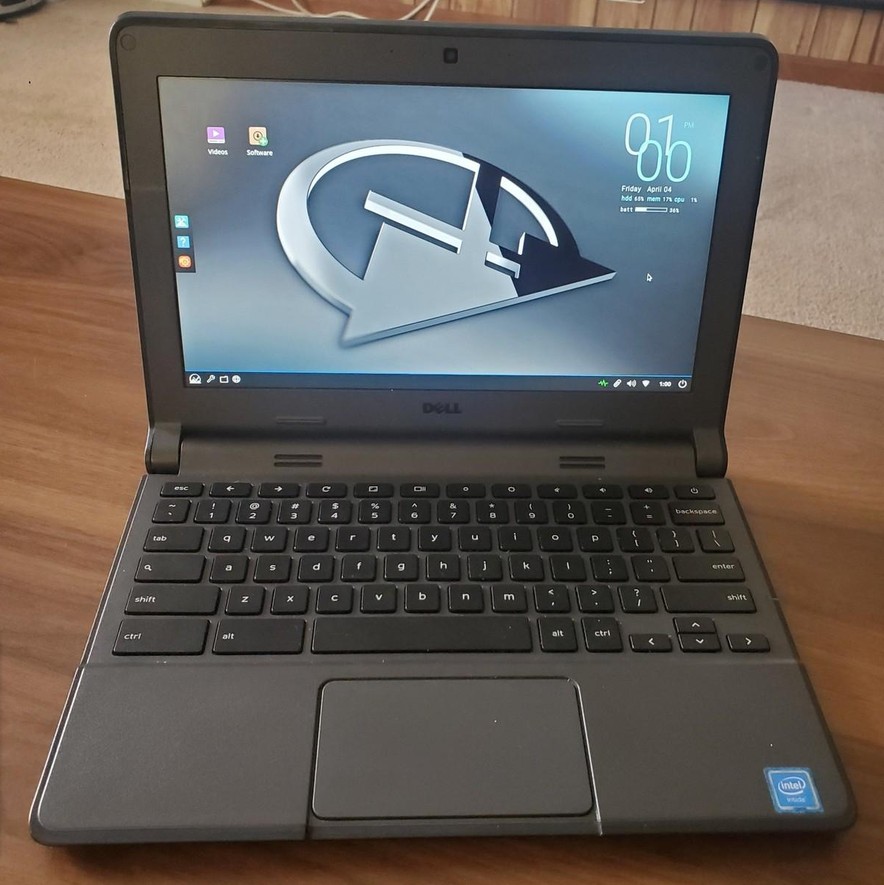
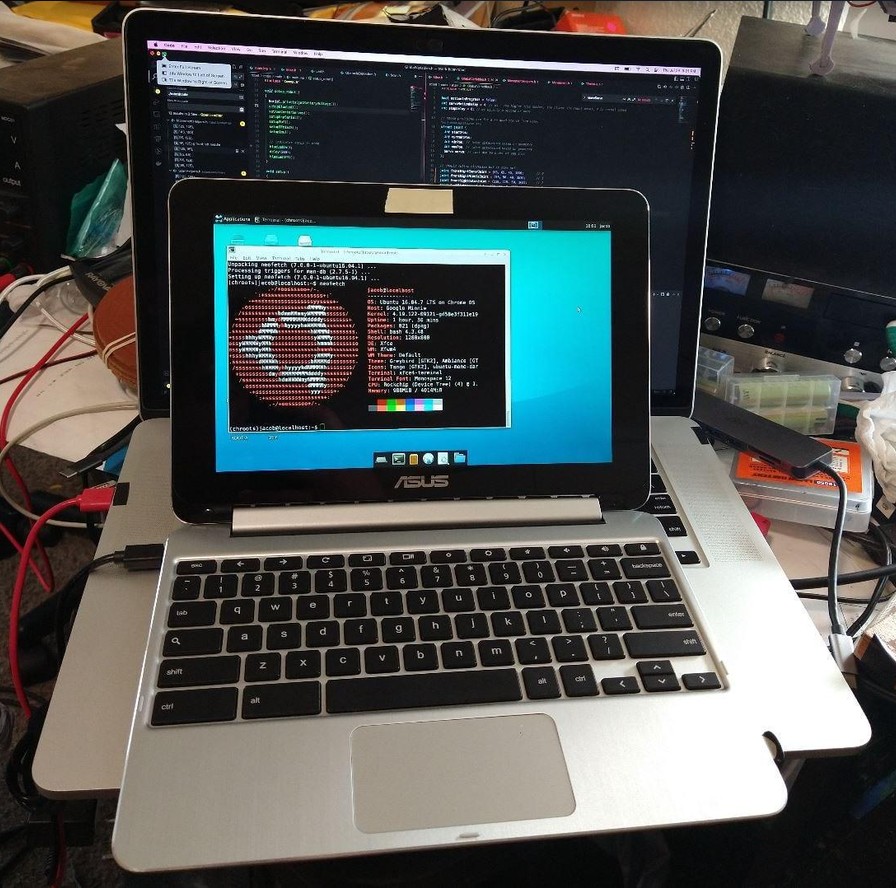
1. What happens when a Chromebook reaches end of life?
Chromebooks have an Automatic Update Expiration (AUE) date. After that date, Google no longer guarantees ChromeOS and browser updates for that platform. Without updates, unpatched security issues and eventual app or website compatibility problems become concerns.
Google provides up to 10 years of automatic updates from a Chromebook platform’s release, not the date it was purchased. Some older models may require opting into extended updates, potentially with feature limitations. Find your device’s date under Settings → About ChromeOS → Additional details → Update schedule, and consult Google’s Auto Update Policy.
2. Why put Linux on an old Chromebook?
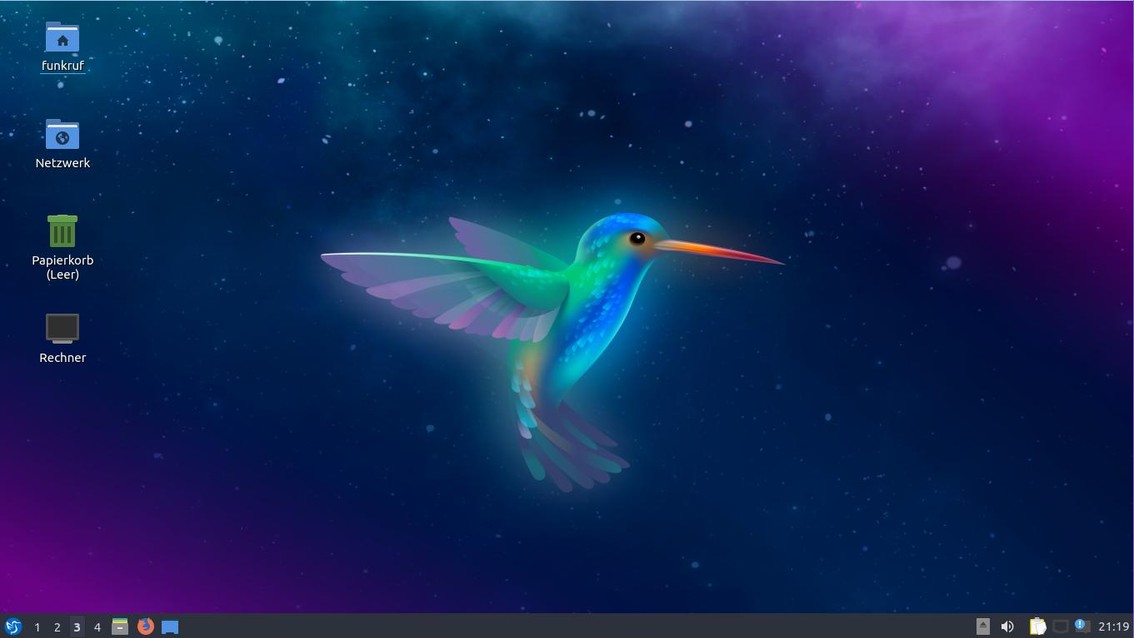
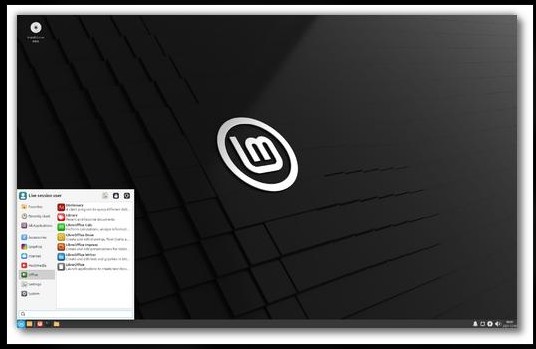
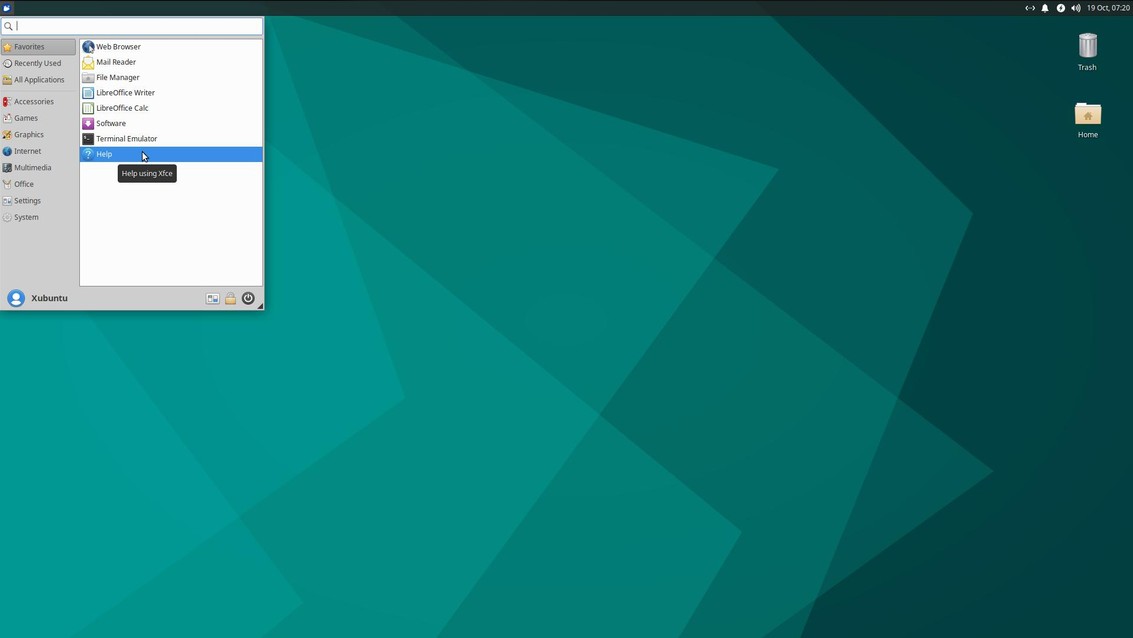
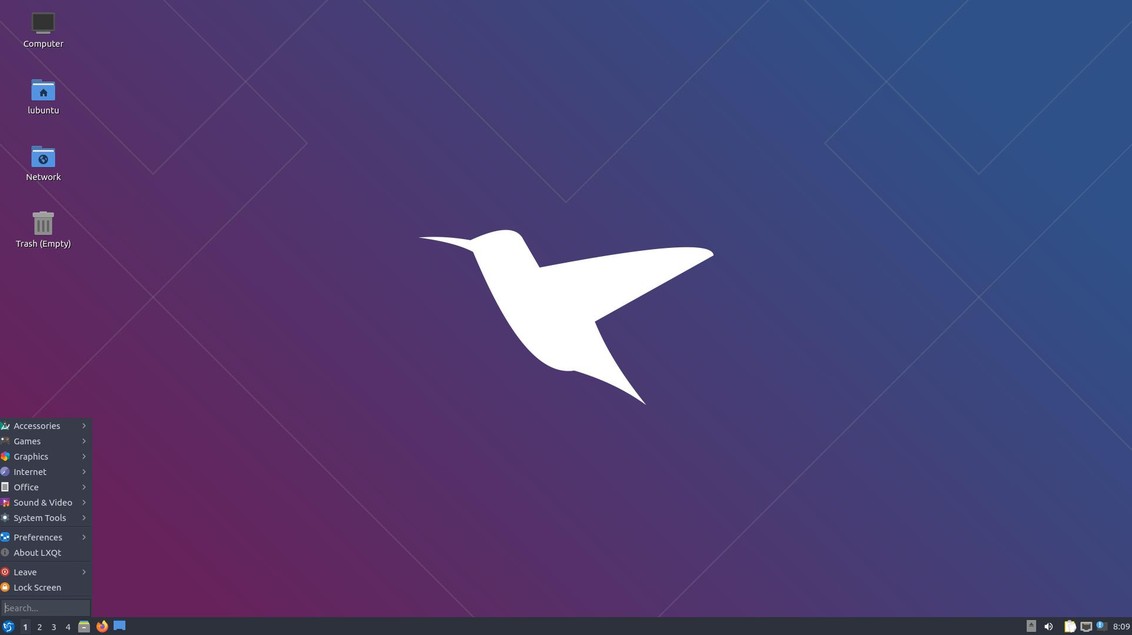
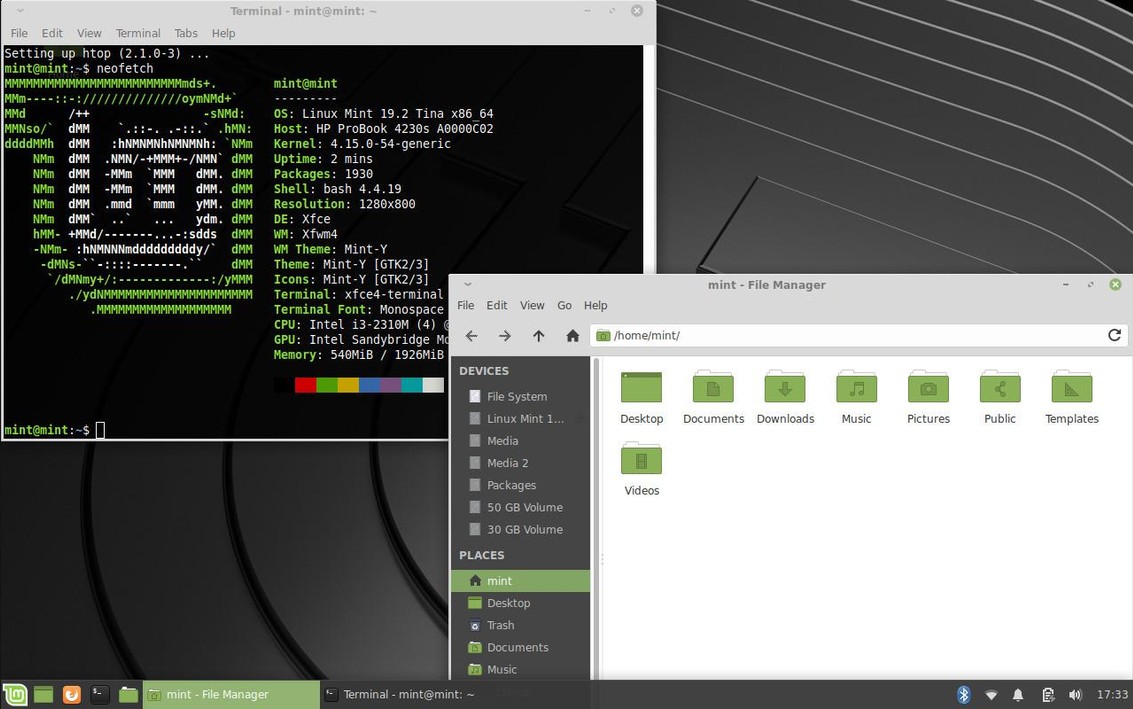
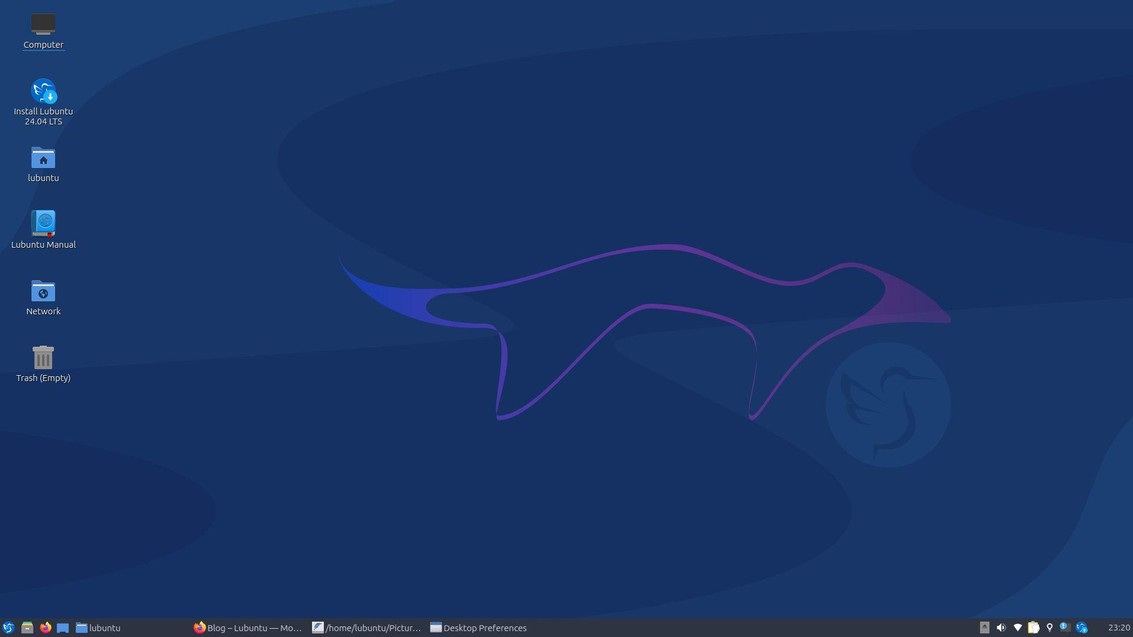
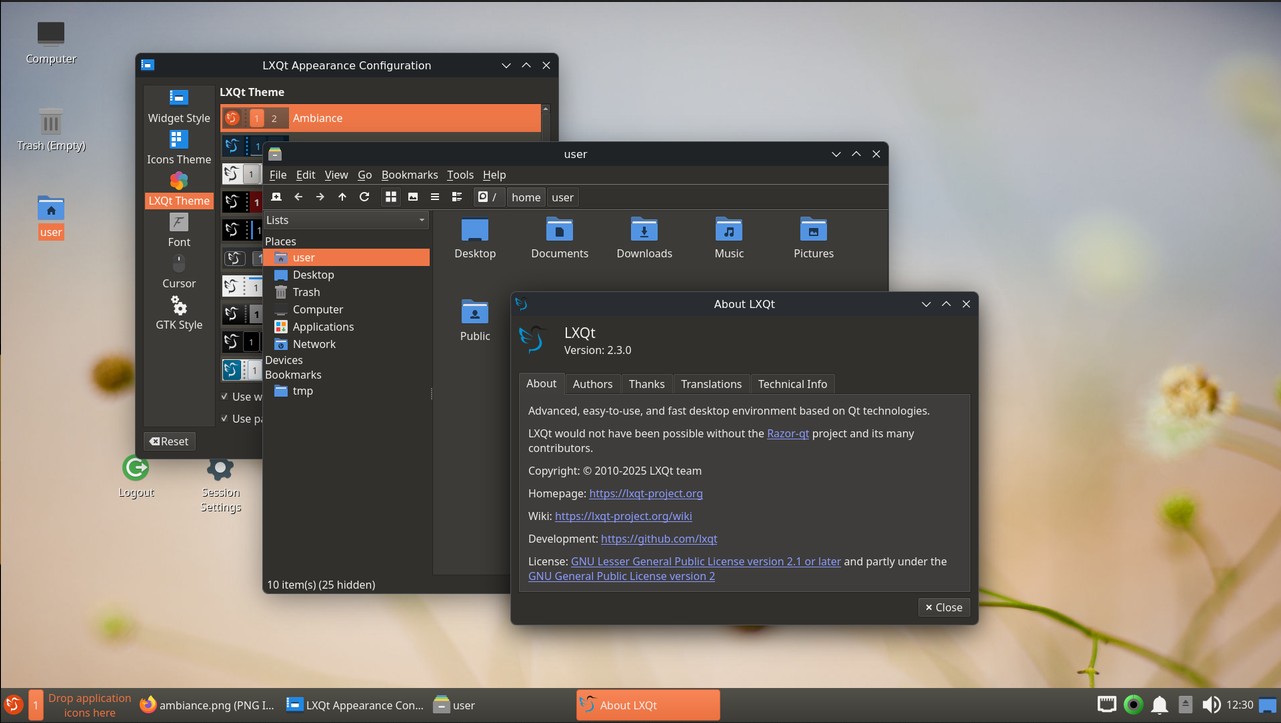
- Lighter desktop: LXQt or XFCE can run comfortably on modest hardware, depending on workload.
- Security updates: A supported Linux distribution receives OS and browser fixes, although unsupported firmware and peripheral drivers can remain a concern.
- Offline applications: Write documents, edit files, and practice programming without continuous internet access.
- Learning opportunities: Explore Python, C++, Linux commands, and microcontroller development.
- Less waste: Reuse working hardware rather than replacing it prematurely.
3. Which lightweight Linux distribution should you choose?
| Distribution | Suggested RAM for practical use | Best for |
|---|---|---|
| Lubuntu (LXQt) | 2 GB or more | Low-resource home and school use |
| Xubuntu (XFCE) | 2–4 GB or more | A balanced everyday desktop |
| Linux Mint XFCE | 4 GB or more | Users who like a familiar desktop |
| Debian with LXQt | 2 GB or more | Tinkerers who want a minimal setup |
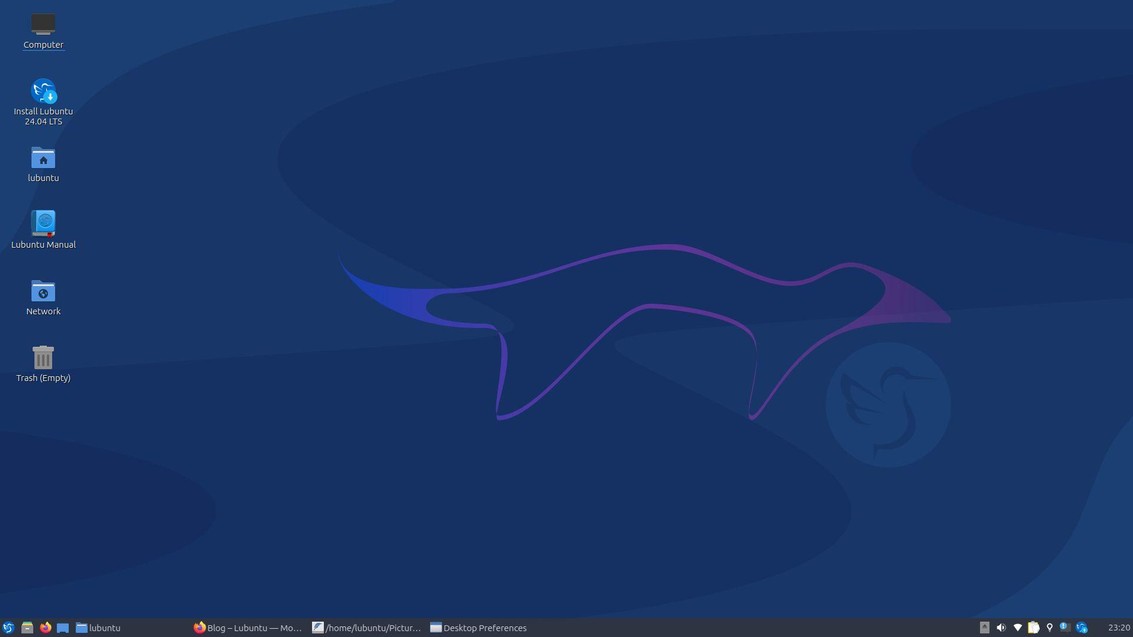
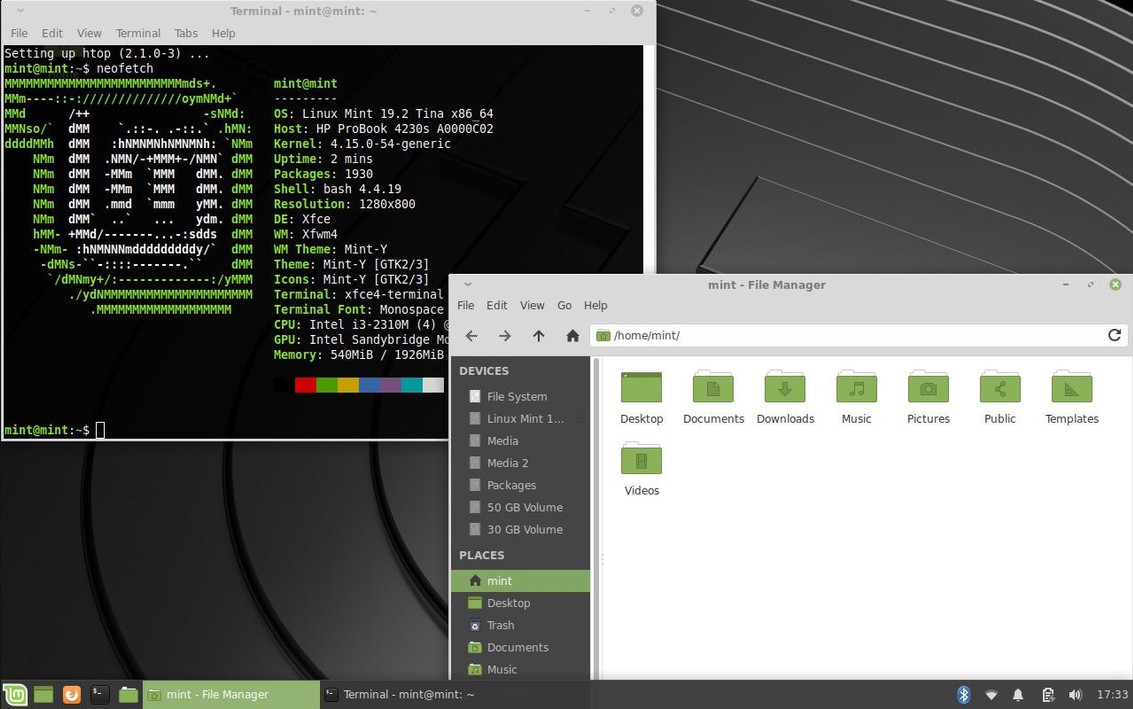
These figures are practical recommendations, not official requirements. Modern browser tabs and video calls can exhaust RAM even with a lightweight desktop. For many compatible older Intel Chromebooks, Lubuntu is an excellent first option.
4. Check compatibility before doing anything
Chromebooks differ from standard PCs. Their firmware, boot security, and peripheral hardware may require special handling. First identify your exact model and board, processor architecture (Intel/AMD x86 versus ARM), RAM, and storage type.
For many supported Intel and AMD models, MrChromebox firmware documentation explains whether alternative UEFI firmware is available. Check the supported devices list before making changes. Not all Chromebooks are supported. ARM Chromebooks generally require different, device-specific procedures; do not use a generic x86-64 Lubuntu installer for an ARM model.
5. Step by step: Install Lubuntu on a compatible Chromebook
Step 1: Back up your files
Copy local files to external or cloud storage. Enabling ChromeOS Developer Mode normally wipes local user data, and firmware replacement or Linux installation can erase the original system. Do not modify a school- or employer-managed Chromebook without authorization.
Step 2: Download Lubuntu
Use the official Lubuntu downloads page to select a currently supported 64-bit release for compatible x86-64 hardware. Prefer an LTS release for long-term use. Verify the downloaded ISO checksum against the official published checksum.
Step 3: Create a USB installer
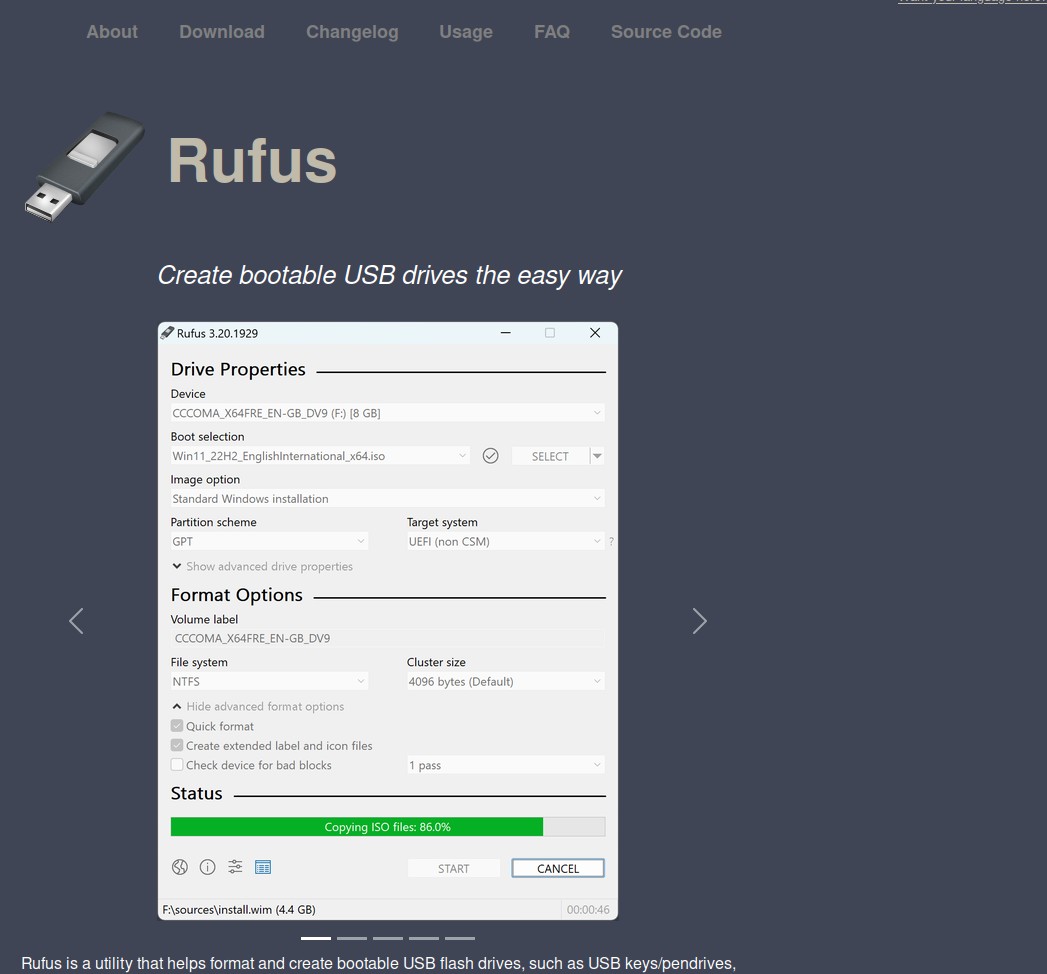
On another computer, write the ISO to an 8 GB or larger USB drive with Balena Etcher, Rufus, or Ventoy. This erases the USB drive’s existing contents.
Step 4: Prepare firmware only if supported
Read the official firmware guide for your exact model. Depending on the device, Developer Mode, firmware write-protection changes, and a backup of the original firmware may be necessary. On supported Chromebooks, the project documents this firmware utility command:
cdcurl -LOf https://mrchromebox.tech/firmware-util.shsudo bash firmware-util.sh
Warning: Do not run firmware commands until you have checked compatibility and read the exact instructions for your board. Incorrect flashing or power interruption can leave the machine unable to boot. Back up original firmware when offered.
Step 5: Test the live Linux environment
After supported UEFI firmware is installed, boot the installer USB. Before installing to storage, test the keyboard, touchpad, Wi-Fi, Bluetooth, sound, microphone, webcam, screen brightness, charging, and sleep/resume. Some Chromebook audio and input devices need additional model-specific fixes.
Step 6: Install Lubuntu
Use the installer to choose language, keyboard, timezone, storage, and user account. An erase-and-install setup is simple for a machine dedicated to Linux, but it destroys data on the selected drive. Double-check the target drive. Restart when installation finishes and remove the installer USB.
6. Essential post-install setup
Open a terminal to install available updates:
sudo apt updatesudo apt full-upgrade
Afterward, reboot if a kernel or critical system component was updated. Install useful software selectively:
sudo apt install libreoffice vlc gimp git python3 python3-venv build-essential
Some applications may already be installed. If the Chromebook has only 16 GB of internal storage, keep the software selection modest.
7. Practical uses for your revived Chromebook

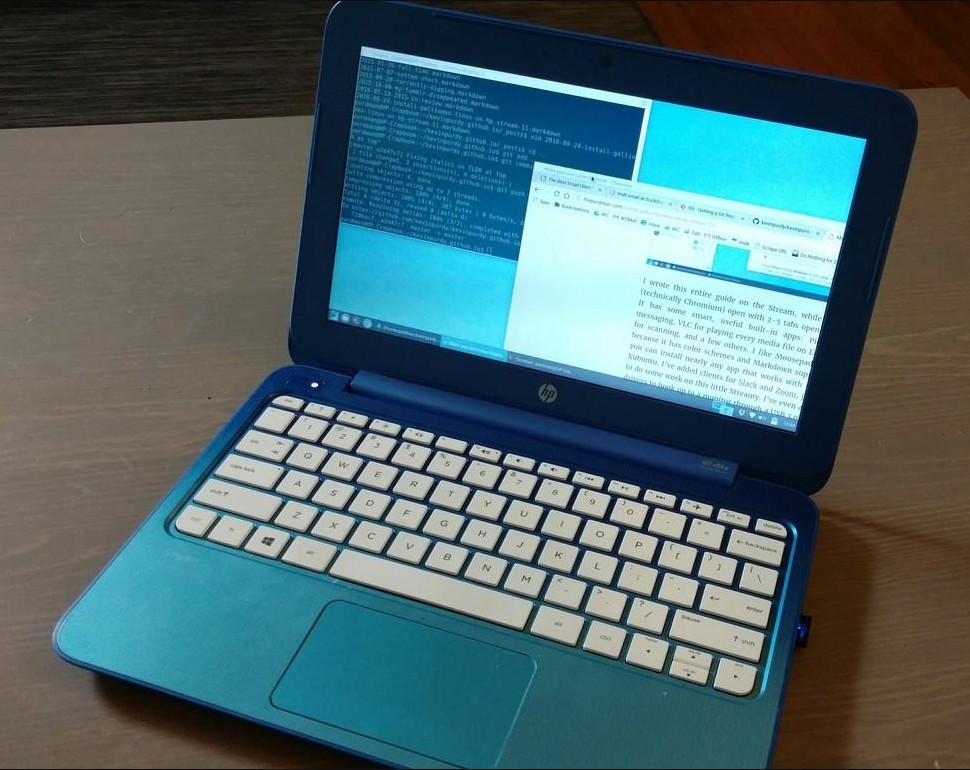
- Schoolwork: LibreOffice documents, PDFs, research, and browser-based assignments. Check school testing and proctoring requirements before relying on Linux.
- Home computing: Email, lightweight browsing, family documents, and local media playback.
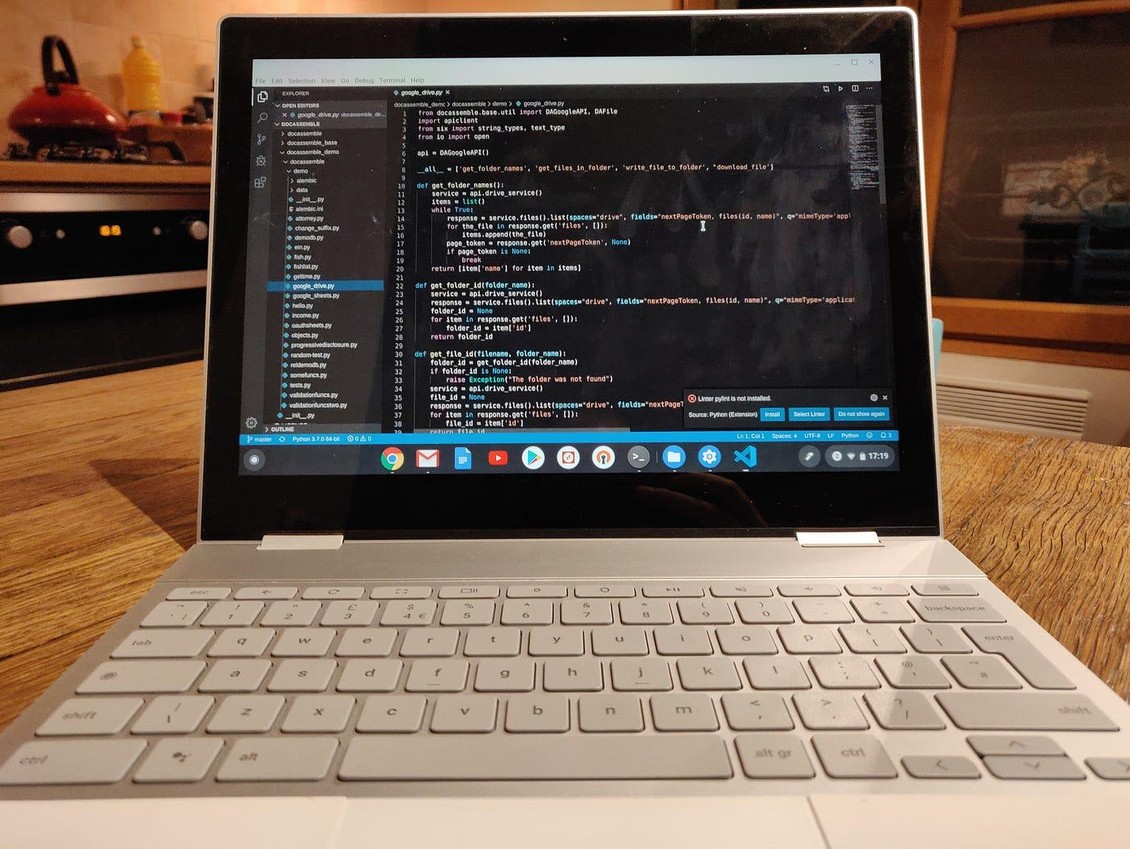
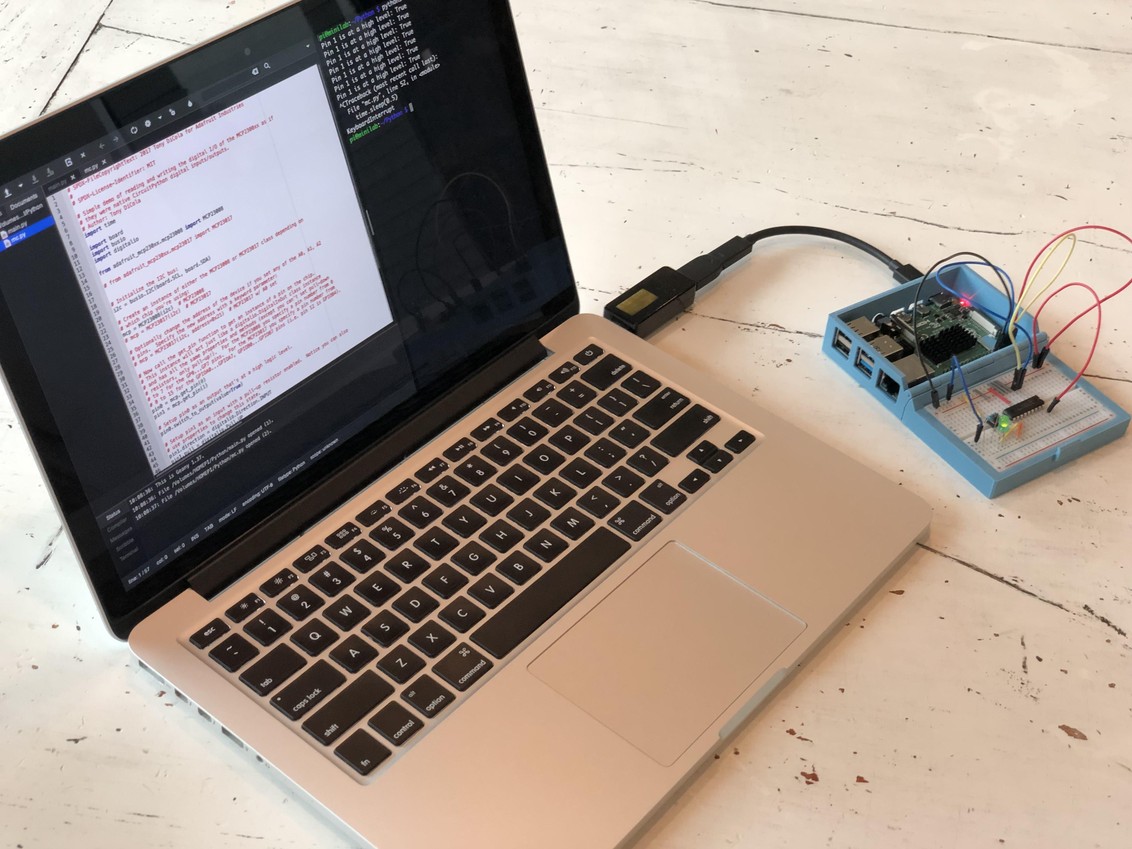
- Programming: Python, C/C++, command-line tools, Git, and introductory web development.
- Electronics projects: A portable terminal for Raspberry Pi and Arduino work, subject to USB and driver compatibility.
- Linux learning: Explore packages, storage, networking, and shell administration on spare hardware.
8. Can you upgrade the hardware?
Many Chromebooks have soldered RAM and eMMC storage, so upgrades may not be possible. Others use replaceable SATA or M.2 SSDs. Check the model’s service documentation before buying parts: an M.2 slot does not automatically mean NVMe support. Batteries and Wi-Fi cards may also be replaceable, but compatibility varies.
9. Is ChromeOS Flex another option?
ChromeOS Flex is intended for supported conventional PCs and Macs. Google does not officially support installing it on Chromebook models that have passed their AUE date. Enthusiast installations may be possible on certain modified x86 devices, but firmware and update support are not guaranteed. It is not a general replacement for unsupported ARM Chromebooks.
10. Is it really worth the effort?
Often, yes—especially if you already own the device. A working old Chromebook can be a great homework machine, writing laptop, backup computer, or hands-on Linux classroom. But be realistic: 2 GB RAM and an old CPU will still struggle with heavy websites, many tabs, 3D games, and demanding video meetings.
Replacing ChromeOS can also mean losing its original verified-boot protections and device-specific conveniences. Keep Linux patched, use a supported browser, and weigh the security tradeoffs. If repairs or parts would be expensive, a refurbished traditional laptop may be better value.
Final thoughts: End of support doesn’t have to be the end
Technology moves quickly, but working hardware doesn’t automatically become useless when its original operating system stops receiving updates. With the right compatibility checks and a lightweight Linux distribution, an old Chromebook may have many productive days ahead.
Before recycling your Chromebook, give it another look. A little Linux knowledge might be all it needs for a second life.
Have you installed Linux on an old Chromebook? Share your model, distribution, and experience in the comments!
Helpful resources
- Google Chromebook Auto Update Policy
- MrChromebox Firmware Documentation
- Lubuntu Downloads
- Lubuntu Manual
- Xubuntu
- Linux Mint
- Debian
Disclaimer: Modifying firmware and installing Linux involves risks including data loss and boot failure. Confirm device support, back up data and original firmware, and follow the device-specific official documentation.


You must be logged in to post a comment.